
The Tiny Binary Computer
Please report errors to bob dot brown at kennesaw dot edu.
The Tiny Binary Computer really needs a desktop- or laptop-sized screen. See Browser Support and Device Support below.
Welcome to TBC!
TBC is the "Tiny Binary Computer." It was inspired by the Little Man Computer, devised by Dr. Stuart E. Madnick of MIT. TBC implements a superset of the Little Man Computer's instruction set, so programs written for LMC can be assembled and run on TBC with only very minor changes. 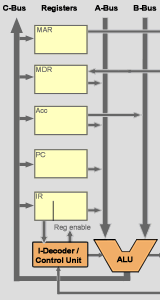
However, the Tiny Binary Computer is different from the Little Man Computer in a number of important ways. Perhaps the most important is that TBC, like all modern computers, is a binary computer, not a decimal computer. The memory in TBC is organized into 12 bit words, with numbers stored as two's complement integers. That means TBC can store values from −2048 to +2047.
Another very visible difference is that there's no "little man." The instruction decoder (I-Decoder) and control unit perform the functions of the little man. The little man could remember memory addresses and their contents, and whether the calculator held a zero or positive number. In TBC, the memory address register (MAR), memory data register (MDR), and P/Z latch perform these functions. Instead of having the little man remember the current instruction, TBC stores it in the instruction register (IR).
TBC has a four-bit operation code instead of as single decimal digit, so it can have up to 16 operation codes. It has examples of instruction types such as you will find in real computers.
Ready to Go?
TBC can save programs in your browser's local storage. If you're ready to try things out, here's a sample program: "Hello, World!" Like a real computer, TBC cannot process human-readable programs directly. They have to be translated by the assembler program into binary. To try out the sample programs:
- Click the "Save" button just below the program; the sample program will be saved in your browser's local storage as "hello." The second sample will be saved as "posdiff."
- Switch to the "Assembler" tab, use the drop-down menu to select the "hello" or "posdiff" program and assemble it by clicking the "assemble" button.
- If all is well, the binary translation of the program will be saved, also as "hello" or "posdiff" but tagged as a binary object program.
- Switch to the "Virtual Machine" tab, select "hello" or "posdiff" in the Load control and click "Load." The program is loaded into memory and the program counter is set to zero. Although the program is binary, it is shown as hexadecimal in the virtual machine for compactness.
- Click "Run" and the program executes. As with many real computers, each instruction takes more than one clock cycle. If you try "posdiff," provide a small, like single-digit, integer value at each of the two "Input?" prompts.
Here's our old friend, Hello World. It has examples of load immediate and load indirect instructions, and uses strings as well as numbers. When you assemble the program, notice how the string "Hello World!" is turned into a series of hexadecimal values in the object code. Also notice that print is a subroutine that demonstrates the call and return instructions.
// The Tiny Binary Computer does "Hello, World!"
// Every programming language seems to start with a
// "Hello, World!" program, so we introduce a Hello World
// program for TBC.  This program demonstrates use of
// several extensions to the LMC instruction set, including
// LDI, load immediate, and subroutine call and return
// with a parameter on the stack.

        ldi     msg     // an address.  Message is stored here
        push
        call    print
        hlt             // "hlt" = halt, stop the program
msg     dat     "Hello World!",nl,end
nl      equ     0x0a    // 0x0a is new line
end     equ     0       // 0 (null) is end of string

print   sswp    temp
        pop             // Save the address pointer as "ptr"
        sta     ptr
loop    lia     ptr     // Load indirect accumulator.
        brz     return  // A null character means done
        outc            // Output a character, not a number
        lda     ptr     // Get the pointer back in ACC
        inc             // Increment to next character
        sta     ptr     // Save it
        br      loop    // Go around
return  ret             // Return to calling program

ptr     dat             // Pointer to next character
temp    dat     0,0     // Temp storage for SSWP
This program demonstrates several extensions to the LMC instruction set. The first instruction, ldi, is load immediate. Instead of loading the first word of msg into the accumulator, it loads the address of msg. The push instruction saves the address of the message on the stack, and the call instruction calls the print subroutine to print the message. The print subroutine uses the sswp, stack swap, macro to exchange the top two stack entries. That allows print to get the address of msg from the stack. When print finishes, the address now at the top of the stack is used to return to the instruction after call. These are all operations that can be performed by most real computers.
Want another one? Here's the "posdiff" program used in many LMC examples. When you run it, use single-digit numbers or it will take a very long time to run.
// Positive Difference Program
// Reads two numbers and subtracts them.  If the
// difference is positive, it is printed.  Otherwise,
// the numbers are swapped and subtracted again, then printed.
// You can think of the Accumulator as the display of a
// very small calculator.
//
       in            // read first number into Accumulator
       sta first     // store it in memory with name "first"
       in            // read second number
       sta second    // store it as "second"
// The second number is stored, but also remains in Accumulator
       sub first     // subtract "first" from Accumulator
       bnn print     // positive? print it (bnn=branch if not negative)
       lda first     // otherwise, load Accumulator with "first"
       sub second    // ... and subtract "second"
print  out           // send to output
       hlt           // and stop (hlt=halt)
first  dat 0x00      // initializes "first" to zero...
second dat           // initialization isn't really necessary
                     // because we will store a value here.
Controls: Loading and running a program is described above. The clock speed slider controls the speed of the simulated CPU clock. "Step" executes one instruction and stops again. "Cycle" runs one clock cycle and stops. Since TBC instructions take several clock cycles, you can observe each part of an instruction. You can find the description of each clock cycle for a given instruction in the "Instruction Set" part of the Principles of Operation page. "Reset" sets the program counter to zero so the program can be started again, but does not reset and data items. To reset the data, reload the program. "Show trace" switches the screen from showing output to showing a trace through the program.
Register and memory contents: While a program is loaded and paused on the virtual machine, you can place the mouse cursor over a register or memory cell to see the values in binary or decimal and how the cell would be interpreted as an instruction. It takes about a second for the tool-tip to appear.
Breakpoints: Clicking in a memory cell will set a breakpoint at that location. When it is about to be loaded, the clock will stop so that you can inspect the contents of memory and registers. Click "Run" or "Step" to continue.
Saving the output: Click the "copy all" icon on the lower right of the output screen, or click in the output screen and press control-A. Press control-C to copy the selected text to the clipboard.
Writing Your Own Programs
You can edit programs directly in the source window of the assembler panel, but you might find it easier to create programs in an editor application like Notepad++ and and upload it using the "Upload" button. Using the "Upload" button automatically saves the source code in the browser's local storage. You can also paste the source in the assembler window. You will need to save the source code by assigning a name in the space next to the "Save As" button, then clicking "Save as."program.
Because a browser's local storage is isolated from the rest of a computer's file system for security, the way to get a source program back out of TBC is to download it using the "Download" button. You can also copy it from the source window of the assembler and paste it into an editor program.
TBC implements all the operation codes and their semantics of the Little Man Computer, so most program written for LMC will work on TBC, too. The biggest difference is that, for TBC, there must be at least one space or tab before the operation code. Labels must begin at the left, with no preceding spaces or tabs. The details are in the Principles of Operation page. The TBC assembler will try to reformat programs with the op codes at the left margin, but some manual corrections may still be necessary.
TBC has many more instructions than LMC. There are examples in the "Hello World" sample program above, and they're all described in the Principles of Operation.
Browser Support
TBC makes extensive use of the features of HTML5 and CSS3. It won't work in older browsers, and will probably fail badly and in unexpected ways. TBC has been tested pretty thoroughly in Firefox and somewhat less thoroughly in Chrome. It ought to work in other modern browsers; if you have trouble, try Firefox or Chrome.
Device Support
You can run TBC on a phone or tablet computer, but both the assembler and the virtual machine need lots of horizontal space. Using a laptop or desktop computer will probably be better.
Professors and teachers
There's a slide set for the entire Computing Concepts book, including TBC, on the book's web page. Want to make your own slides? Try the Slide Maker.